• Skip to primary navigation
  • Skip to main content
Contact
Beech Village Hall logo

clientsite.uk

  • What’s on
    • What’s on
    • Browse events
    • Booking information
    • Beyond Beech
  • Health & Wellbeing
    • Health & Wellbeing
    • Meet our Practitioners
    • Join our Practitioner community
  • Hire a space
    • Hire a space
      • Hire a space
      • Celebrations and Life Events
      • Children’s parties
      • Commemorations
      • Groups and organisations
      • Wedding receptions
    • Check availability
      • Check availability
      • Main Hall availability
      • The Wellhouse availability
    • Find caterers and suppliers
    • Packages and pricing
  • Community
    • Community
    • Community Groups and Clubs
    • Members’ corner
    • Browse Volunteer roles
    • Community information

Get involved

Food hygiene

19 December, 2023

What? How?

Clean hands through handwashing.

Wash your hands frequently throughout the session and always after:

  1. Handling money
  2. Going to the toilet

FSA handwashing video

Clean and germ free surfaces through cleaning and disinfection FSA Cleaning video

Handle enquiries about allergens in our products.

  1. Know what allergens are
  2. Refer customers to our ingredient list and disclaimer

 FSA Allergens

Serving food Use a tool, not your hands eg cake slice or tongs
Minimise cross contamination

Use different tools to serve different food types.

Fresh food and milk

Only use fresh food and milk

Do not store food and milk for more than 24 hours.

Clean clothes and an apron Always wear clean clothes and a clean apron when serving food.


How to use our point of sale (PoS)

19 December, 2023

We use the Square system to take payments for food, drinks and tickets using:

  1. Card (preferred)
  2. Cash
  3. Payment links

To use one of the systems you will need:

  1. Access codes:
    1. The 6 digit PIN code to access the iPad
    2. The 4 digit PIN code to access the Square application on the iPad
    3. Please email sales@beechvillage.org.uk for this
  2. To ensure the iPad and card reader are charged
  3. Or alternativlely, you can set up your own device or web browser to take payments
    1. Please email sales@beechvillage.org.uk for help on setting this up

How to use the Square app:

  1. Turn on the iPad
  2. Enter the 6 digit PIN code for the iPad,
  3. Check you are in the Square app, if not select the Square app from the menu
    1. Your will need to enter the 4 digit PIN code for the Square app
  4. Check you are on the correct menu for the event:
    • The menu name is in the top left of the screen
    • There is a book icon you can press to select different menus on the top right of the menu.
  5. Navigate the screen to select the items you wish to add to the ‘shopping cart’
  6. You can select an item multiple times or update the quantity from the shopping cart.
  7. Select pay
    1. The application defaults to card payment and the card reader will show a green light
      • If you override to cash and you are handling food a you MUST wash your hands after handling money
    2. The card reader does not display the amount, you can show the customer the iPAd display if asked.
    3. The customer can tap or insert their card or phone
      • Sometimes customers are required to insert their card and enter their PIN
      • You will need to present the iPad screen to enable their PIN entry
    4. Once payment is confirmed you will be given the option to email a receipt to the customer, to do this you/they will need to enter an email address

Square problems

Check reader is powered on and has chargePower button next to charging port
Plug into charger
Check reader is connected to Square applicationFrom Square app on iPad:
Click ‘More’ at bttom right of screen
Sellect ‘Settings’
Select ‘Hardware from left navigation
Check connected devices

Coffee Grinder

19 December, 2023

Help by running a monthly 3 hour shift of 2 people at the Beech Coffee and Cake shop preparing fresh coffee and teas and serving our home made cakes.

What a Coffee Grinder does:

Coffee Grinder (smile and serve a 3 hour shift)

  1. Regularly wash hands and keep surfaces clean at all times.
  2. Take orders using point of sale system
  3. Take payments using point of sales system
  4. Prepare drinks and food
  5. Serve drinks and food
  6. Collect used crockery and run through dishwasher
  7. Curate our sound system
  8. Take feedback and suggestions for improvement

Link to the manual: Coffee grinder manual

Useful links:

How to?Link for more information
How to volunteer to help?Volunteering
How to see our calendar of helpers?Calendar
How to submit an expense claim for baking or other costs?Expenses
How to get a ‘Baking sheet’Baking sheet
How to report a problem or incidentProblem report

How to get the skills:

  • All
  • Core skills for everyone
  • Point of Sale
  • Food hygiene
  • Coffee

Coffee

Golden rules:

  1. Ask the customer how they prefer their coffee
  2. Start the milk preparation first
  3. One at a time

Heat!

  1. Make sure the cup is pre-heated
  2. Make sure the portafilta is hot (always keep it in the centre station)

The best way to learn is by practise… please arrange for some hands on practise by emailing bookings@beechvillage.org.uk

Our coffee

Our coffee beans

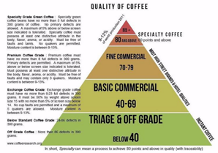
We source our ‘SPECIALITY’ grade arabica roasted coffee beans from Moon Roast who are a ‘specialist’ roaster;

Moon Roast:

Source coffee as directly from origin as we are able, and our high-grade, 100% Arabica beans comes straight from small farms in coffee-growing countries like Rwanda, Kenya and Guatemala. Our coffee is seasonally selected at the roastery through the process of sample roasting and cupping when shipments of new season coffee have landed.

Moon Roast Blend Composition
50% Brazil Fazenda Irubi
30% Colombia Monte Bonito
20% Guatemala Finca Filadelphia 


A quick guide to coffee drinks

The ‘coffee’ drink can be extracted from ground roasted coffee beans in a variety of ways. 

  • Espresso machine
  • Hand held espresso maker
  • Stovetop espresso maker
  • Aeropress
  • French press
  • Coffee bag
  • Vacuum / siphon pot
  • Percolator
  • Manual pour over coffee makers
  • Machine pour over coffee makers

We have selected to serve Espresso based coffee drinks.

Espresso is a method of brewing coffee that uses high water pressure and ‘tamped’ ground beans to make a small concentrated ‘shot’ that is also called an Espresso.

Espresso (/ɛˈsprɛsoʊ/ ( listen), Italian: [eˈsprɛsso]) is a coffee-brewing method of Italian origin,[1] in which a small amount of nearly boiling water (about 90 °C or 190 °F) is forced under 9–10 bars (900–1,000 kPa; 130–150 psi) of pressure (expressed) through finely-ground coffee beans. Espresso coffee can be made with a wide variety of coffee beans and roast degrees. Espresso is the most common way of making coffee in southern Europe, especially in Italy, Spain, Portugal, Switzerland, Southern France and Bulgaria.

Espresso is generally thicker than coffee brewed by other methods, with a viscosity of warm honey. This is due to the higher concentration of suspended and dissolved solids, and the crema on top (a foam with a creamy consistency).[2] As a result of the pressurized brewing process, the flavors and chemicals in a typical cup of espresso are very concentrated. The three dispersed phases in espresso are what make this beverage unique. The first dispersed phase is an emulsion of oil droplets. The second phase is suspended solids, while the third is the layer of gas bubbles or foam. The dispersion of very small oil droplets is perceived in the mouth as creamy. This characteristic of espresso contributes to what is known as the body of the beverage. These oil droplets preserve some of the aromatic compounds that are lost to the air in other coffee forms. This preserves the strong coffee flavor present in the espresso.[3] Espresso is also the base for various coffee drinks—including caffè latte, cappuccino, caffè macchiato, caffè mocha, flat white, and caffè Americano.

Source: Wikipedia

The Espresso ‘shot’ is the basis for a variety of coffee drinks based on adding extra water and or types of frothed milk.

Our coffee machine

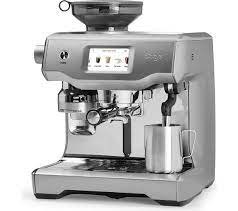
Sage Oracle Touch best practice:

Tips: www.youtube.com/watch?v=V8246awntvM

  1. Maintain the same quantity of beans in the hopper (regularly top up)
  2. Pre-warm portafilta by keeping in the brew head
  3. Pre-warm cups by keeping on warming tray of machine or use hot water
  4. Wipe down portafilta with clean damp paper towel before use
  5. Occasionally flush brew head by pressing brew without portafilta in place for 5 seconds and then wipe down with damp paper towel


Our Espresso set up:

Our machine is set up to automatically dispense a standard ‘double Espresso’:

Coffee grinder setting of 15

Weight of ground coffee 20g

Brew time of 30 seconds

Delivers approx. 40 ml of Espresso

How to serve our coffees:

Name

Machine

setting


Qty of coffee

Cup size

Qty of milk

Qty of water

Notes

Espresso

BVH Espresso


40 ml (double)

3 oz (85 ml)

None

None

Machine set up is:

Coffee grinder setting of 15

Weight of ground coffee 20g

Brew time of 30 seconds

Delivers approx. 40 ml of Espresso

Macchiato

BVH Latte


40 ml (double)

3 oz (85 ml)

2 spoons

None

One or two spoons of milk froth on top of an Espresso

Cortado

40 ml (double)

6 oz (170 ml)

40 ml

None

Espresso topped with 50% steamed mill

Flat white


40 ml (double)

6 oz (170 ml)

120 ml

None

Espresso topped up with 2/3 steam milk and a fine layer of foam on top (<1 cm)

Latte

40 ml (double)

8 oz (227 ml)

180 ml

None

Espresso topped up with 2/3 steam milk and a fine layer of foam on top (1-2 cm)

Cappuccino

BVH Cappucino


40 ml (double)

10 oz (284 ml)

180 ml

None

Espresso topped with 1/3 steamed milk and 1/3 dry foam. A traditional cappuccino has an even distribution of espresso, steamed milk, and foamed milk (2-4 cm)

How to make one: www.youtube.com/watch?v=wRe3Z9ogDaA

Americano

BVH Americano


40 ml (double)

8 oz (227 ml)

None

140 ml

Water with Espresso added. 2/3’s hot water

How to make one:

www.youtube.com/watch?v=ZUI9F5jWjbk

Long Black

40 ml (double)

8 oz (227 ml)

None

120 ml

Water with Espresso added. 2/3’s hot water

Food hygiene

What? How?

Clean hands through handwashing.

Wash your hands frequently throughout the session and always after:

  1. Handling money
  2. Going to the toilet

FSA handwashing video

Clean and germ free surfaces through cleaning and disinfection FSA Cleaning video

Handle enquiries about allergens in our products.

  1. Know what allergens are
  2. Refer customers to our ingredient list and disclaimer

 FSA Allergens

Serving food Use a tool, not your hands eg cake slice or tongs
Minimise cross contamination

Use different tools to serve different food types.

Fresh food and milk

Only use fresh food and milk

Do not store food and milk for more than 24 hours.

Clean clothes and an apron Always wear clean clothes and a clean apron when serving food.


How to keep us all safe?

In signing up to support our community we ask our volunteers to understand and comply with our core values and beliefs as defined in these policies:

    1. Code of Conduct
    2. Health and Safety
    3. Safeguarding and Child protection
    4. Data Protection Policy


How to report a problem or incident?

Here the numbers to call for immediate help. After the incident please ensure the details are reported using this Problem reporting form or email bookings@beechvillage.org.uk

In case of Accident, Injury or Safeguarding concern:

What

What/Where

Call

Emergency


999

Not sure what to do?

NHS 111 can help if you have an urgent medical problem

111

Defibrillator

Outside the front entrance on the right

(dial 999 for assistance)

First Aid kit

In the Village Hall kitchen


Hospital A&E

Basingstoke NHS Foundation Trust, Aldermaston Rd, Basingstoke, RG24 9NA

01256 473202

Doctors Surgery

Chawton Park Surgery, Chawton Park Road, Alton, GU34 1RJ

01420 542542

Out of hours:

0208 390 9991

Safeguarding

Emergency

999

Child or Adult in danger

101

Report a concern about a child

0300 555 1384

Report a concern about an adult

0300 555 1386

How to submit an expense claim?

To be reimbursed for expenses incurred in supporting our Charity please use this online form:

Expense claim

The form is primarily designed for submitting claims for baking and milk expenses for our Coffee shop but you can use it for other expenses:

  1. You will need to provide your bank details (if we dont already have them)
  2. Please remember to scan and attach a receipt
  3. Expense are normally paid monthly so please let us know if yours are urgent

How to use our coffee machine?

Please note that we do not normally hire out our coffee machine. Please contact us at bookings@beechvillage.org.uk if you would like to use it.

Sage Oracle Touch best practice:

Tips: www.youtube.com/watch?v=V8246awntvM

  1. Maintain the same quantity of beans in the hopper (regularly top up)
  2. Pre-warm portafilta by keeping in the brew head
  3. Pre-warm cups by keeping on warming tray of machine or use hot water
  4. Wipe down portafilta with clean damp paper towel before use
  5. Occasionally flush brew head by pressing brew without portafilta in place for 5 seconds and then wipe down with damp paper towel

Prepare coffee

Prepare milk

How to use Sage ORACLE Touch

Understand best practice in using the Sage Oracle Touch

Tips: Best practise on using Sage Oracle Touch

Add water


Add beans


Clean the machine

Empty the drip tray


Our Espresso set up:

Our machine is set up to automatically dispense a standard ‘double Espresso’:

Coffee grinder setting of 15

Weight of ground coffee 20g

Brew time of 30 seconds

Delivers approx. 40 ml of Espresso

How to use our point of sale (PoS)

We use the Square system to take payments for food, drinks and tickets using:

  1. Card (preferred)
  2. Cash
  3. Payment links

To use one of the systems you will need:

  1. Access codes:
    1. The 6 digit PIN code to access the iPad
    2. The 4 digit PIN code to access the Square application on the iPad
    3. Please email sales@beechvillage.org.uk for this
  2. To ensure the iPad and card reader are charged
  3. Or alternativlely, you can set up your own device or web browser to take payments
    1. Please email sales@beechvillage.org.uk for help on setting this up

How to use the Square app:

  1. Turn on the iPad
  2. Enter the 6 digit PIN code for the iPad,
  3. Check you are in the Square app, if not select the Square app from the menu
    1. Your will need to enter the 4 digit PIN code for the Square app
  4. Check you are on the correct menu for the event:
    • The menu name is in the top left of the screen
    • There is a book icon you can press to select different menus on the top right of the menu.
  5. Navigate the screen to select the items you wish to add to the ‘shopping cart’
  6. You can select an item multiple times or update the quantity from the shopping cart.
  7. Select pay
    1. The application defaults to card payment and the card reader will show a green light
      • If you override to cash and you are handling food a you MUST wash your hands after handling money
    2. The card reader does not display the amount, you can show the customer the iPAd display if asked.
    3. The customer can tap or insert their card or phone
      • Sometimes customers are required to insert their card and enter their PIN
      • You will need to present the iPad screen to enable their PIN entry
    4. Once payment is confirmed you will be given the option to email a receipt to the customer, to do this you/they will need to enter an email address

Square problems

Check reader is powered on and has chargePower button next to charging port
Plug into charger
Check reader is connected to Square applicationFrom Square app on iPad:
Click ‘More’ at bttom right of screen
Sellect ‘Settings’
Select ‘Hardware from left navigation
Check connected devices

How to do the job

Before your shift

  • Make sure you are fit and well. Please let us know if you are not feeling well!
  • Prepare your ‘playlist’ of music.
  • Wear comfortable shoes and clean clothes!
  • Make sure you have your name badge

On arrival

  • Wash your hands
  • Put on a clean apron
  • Check your hands for cuts and cover with a plaster
  • Attach your name badge
  • Check availability of cakes and biscuits and update chalkboard

During your shift

  • Remember to use the drinking water tap to fill kettles and the coffee machine
  • Regularly check the coffee machine (see best practice)
  • Wash your hands regularly
  • Gather up dirty crockery and run through the dishwasher

End of shift

  • Detach your name badge from you apron
  • Return your apron so we can clean it

Cake curator

19 December, 2023

Help us by preparing beautiful and delicious home made cakes for sales at the the Beech Coffee and Cake shop!

  1. Prepare and bake the cakes
  2. Deliver to the shop on Friday morning
  3. Comply with our Food Hygiene policies including ingredient and sell by labelling

Here is a link to our Cake Curator manual

Useful links:

How to? Link for more information
How to volunteer to help? Volunteering
How to see our calendar of helpers? Calendar
How to submit an expense claim for baking or other costs? Expenses
How to get a ‘Baking sheet’ Baking sheet
How to report a problem or incident Problem report

How to get the skills:

  • All
  • Core skills for everyone
  • Food hygiene

Food hygiene

What? How?

Clean hands through handwashing.

Wash your hands frequently throughout the session and always after:

  1. Handling money
  2. Going to the toilet

FSA handwashing video

Clean and germ free surfaces through cleaning and disinfection FSA Cleaning video

Handle enquiries about allergens in our products.

  1. Know what allergens are
  2. Refer customers to our ingredient list and disclaimer

 FSA Allergens

Serving food Use a tool, not your hands eg cake slice or tongs
Minimise cross contamination

Use different tools to serve different food types.

Fresh food and milk

Only use fresh food and milk

Do not store food and milk for more than 24 hours.

Clean clothes and an apron Always wear clean clothes and a clean apron when serving food.


How to keep us all safe?

In signing up to support our community we ask our volunteers to understand and comply with our core values and beliefs as defined in these policies:

    1. Code of Conduct
    2. Health and Safety
    3. Safeguarding and Child protection
    4. Data Protection Policy


How to report a problem or incident?

Here the numbers to call for immediate help. After the incident please ensure the details are reported using this Problem reporting form or email bookings@beechvillage.org.uk

In case of Accident, Injury or Safeguarding concern:

What

What/Where

Call

Emergency


999

Not sure what to do?

NHS 111 can help if you have an urgent medical problem

111

Defibrillator

Outside the front entrance on the right

(dial 999 for assistance)

First Aid kit

In the Village Hall kitchen


Hospital A&E

Basingstoke NHS Foundation Trust, Aldermaston Rd, Basingstoke, RG24 9NA

01256 473202

Doctors Surgery

Chawton Park Surgery, Chawton Park Road, Alton, GU34 1RJ

01420 542542

Out of hours:

0208 390 9991

Safeguarding

Emergency

999

Child or Adult in danger

101

Report a concern about a child

0300 555 1384

Report a concern about an adult

0300 555 1386

How to submit an expense claim?

To be reimbursed for expenses incurred in supporting our Charity please use this online form:

Expense claim

The form is primarily designed for submitting claims for baking and milk expenses for our Coffee shop but you can use it for other expenses:

  1. You will need to provide your bank details (if we dont already have them)
  2. Please remember to scan and attach a receipt
  3. Expense are normally paid monthly so please let us know if yours are urgent

Burger Flipper

19 December, 2023

Always in demand at our Summer events and our annual Bonfire! Help us organise and run our BBQ’s safely!

How to get the skills

  • All
  • Core skills for everyone
  • Food hygiene
  • BBQ

BBQ safety

Gas, charcoal and disposable BBQs are safe when used responsibly and our BBQ safety tips are designed to ensure you stay safe. Follow our BBQ safety tips and enjoy your al fresco cooking without any risks (except for a bit of overindulging!).

BBQ safety checklist

The following BBQ safety advice contains all the essential points to keep in mind when cooking with a BBQ:

  • Never use a BBQ indoors.
  • This includes any temporary outdoor shelter such as tents, marquees, yurts, gazebos, playhouses, shepherd huts or igloos!
  • Don’t take a lit or smouldering BBQ into a tent, caravan, or cabin. Even when you have finished cooking with it, a BBQ can still give off fumes that can give you carbon monoxide poisoning. You should always leave it outside.
  • The cooking area should be well away from buildings and be well ventilated with fresh air.
  • Be aware of the signs of carbon monoxide poisoning:
    • Headaches
    • Nausea
    • Breathlessness
    • Dizziness
    • Collapse
    • Loss of consciousness
  • Always use your BBQ in accordance with the operating instructions.
  • Check the BBQ for damage before use.
  • When using your BBQ ensure that it is on a level ground. In the case of disposable BBQs, use on a non-combustible surface
  • Ensure disposable BBQs are cold before disposing responsibly into refuse containers. Even a slightly warm BBQ could cause a fire.

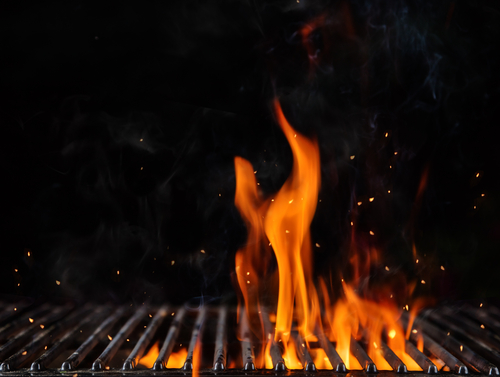
Extinguishing a Grease Fire on Your Propane Grill

grease fire tips new jerseyUsually, cooking food on a propane grill is a cinch. But any time you’re dealing with fire and grease, accidents are always a possibility – and it’s important for you to know exactly what to do, and not to do, if you have a grease fire or flare-up.
Here’s the scoop about grease fire safety on your propane grill:

  • Stay ready:
    • When you grill, have a cell phone nearby in case you need to make an emergency call
    • Keep a fire extinguisher, gloves and either baking soda, sand or kosher salt near your grill to extinguish flames.
  • If you have a fire and it’s safe to do so,
    • Turn off the grill’s burners.
    • Remove the food and smother the flames by throwing baking soda, sand or kosher salt over it. NEVER use water to extinguish a grease fire or flare up. 
    • Close the lid and any grill vents to further starve the fire of oxygen.
  • If the propane tank has become part of the fire, or if the fire expands out of control, evacuate the area immediately and call the fire department.

How To Avoid Grease Fires and Flare-ups

Of course, the best way to deal with grease fires and flare-ups is to avoid them in the first place. Here are the best ways to do it.

  • Clean your grill regularly, following instructions from your manufacturer. Regular cleaning will greatly reduce the risk of a fire (your food will taste better, too).
  • Grease sometimes pools in the fire box area around the burners. If it is safe to do so, turn off the gas and leave the lid open so the grease can burn off.
  • Always cook with the lid down, and leave it down during cooking time.
  • Oil the food, not the grates.
  • If you experience a grease flare-up,
    • Immediately move the food to a warming rack, using long-handled tongs
    • Slowly re-place food at center of the grill to let fat burn off; continue this process for each item.
    • Once all food has been returned to the grill, finish cooking with a watchful eye.

Gas BBQ maintenance tips

  • If you’re using a gas BBQ here are some additional safety tips to keep you safe while cooking. These tips can also be applied to other gas devices like a camping stove, light, or heater:
  • Before use, check that the BBQ is in good working order and any hoses are not showing signs of wear, stiffness or cracking. If you have any doubts about the safety of a gas BBQ do not use it and contact a Gas Safe registered engineer.

  • When changing your gas cylinder turn off the gas taps, and always change the cylinder in the open air.
  • Don’t over-tighten joints.
  • Always turn off the gas cylinder before turning off the BBQ controls to ensure that any gas left in the pipeline is used up.
  • The instructions that come with your BBQ should detail how to check for gas leaks. This often involves coating joints with a leak detection solution and then watching for bubbles. Be sure to follow these instructions before using the BBQ to check for any problems. If you find a leak do not use the BBQ and consult the instructions for further advice.
  • Leave gas powered stoves, lights, or heaters outside in the fresh air at all times to prevent carbon monoxide build up.
  • ALWAYS follow and consult the manufacturer’s instructions for appliance specific advice on use, ventilation, maintenance and care.
  • Gas components, on any appliance, should only be repaired or replaced by a competent person and this includes your BBQ
  • Storage – At the end of the season thoroughly clean your BBQ, do not leave the cylinder connected when not in use, and store it in a dry environment.

Liquid petroleum gas (LPG) powered products are a feature of many summers, taken along on camping trips, to festivals, or keeping you warm on the patio in the evening. You can find out more safety advice on LPG equipment here.

Food hygiene

What? How?

Clean hands through handwashing.

Wash your hands frequently throughout the session and always after:

  1. Handling money
  2. Going to the toilet

FSA handwashing video

Clean and germ free surfaces through cleaning and disinfection FSA Cleaning video

Handle enquiries about allergens in our products.

  1. Know what allergens are
  2. Refer customers to our ingredient list and disclaimer

 FSA Allergens

Serving food Use a tool, not your hands eg cake slice or tongs
Minimise cross contamination

Use different tools to serve different food types.

Fresh food and milk

Only use fresh food and milk

Do not store food and milk for more than 24 hours.

Clean clothes and an apron Always wear clean clothes and a clean apron when serving food.


How to keep us all safe?

In signing up to support our community we ask our volunteers to understand and comply with our core values and beliefs as defined in these policies:

    1. Code of Conduct
    2. Health and Safety
    3. Safeguarding and Child protection
    4. Data Protection Policy


How to report a problem or incident?

Here the numbers to call for immediate help. After the incident please ensure the details are reported using this Problem reporting form or email bookings@beechvillage.org.uk

In case of Accident, Injury or Safeguarding concern:

What

What/Where

Call

Emergency


999

Not sure what to do?

NHS 111 can help if you have an urgent medical problem

111

Defibrillator

Outside the front entrance on the right

(dial 999 for assistance)

First Aid kit

In the Village Hall kitchen


Hospital A&E

Basingstoke NHS Foundation Trust, Aldermaston Rd, Basingstoke, RG24 9NA

01256 473202

Doctors Surgery

Chawton Park Surgery, Chawton Park Road, Alton, GU34 1RJ

01420 542542

Out of hours:

0208 390 9991

Safeguarding

Emergency

999

Child or Adult in danger

101

Report a concern about a child

0300 555 1384

Report a concern about an adult

0300 555 1386

How to submit an expense claim?

To be reimbursed for expenses incurred in supporting our Charity please use this online form:

Expense claim

The form is primarily designed for submitting claims for baking and milk expenses for our Coffee shop but you can use it for other expenses:

  1. You will need to provide your bank details (if we dont already have them)
  2. Please remember to scan and attach a receipt
  3. Expense are normally paid monthly so please let us know if yours are urgent

Social Event helper!

19 December, 2023

Help to serve food and clear up at social events, or flip burgers at barbecues and on Bonfire Night. We offer a free meal if you commit to helping out!

We now have a caterer for our monthly social evenings, but we still need one or two volunteers each month to help serve the food, load the dishwasher and clear up the Hall and kitchen. It’s good fun and as a thank you, we are happy to offer you a free meal. If you’d like to help out from time to time. please contact us:

Submit contact form

How to get the skills:

  • All
  • Core skills for everyone
  • Point of Sale
  • Food hygiene
  • Using the hall

BBQ safety

Gas, charcoal and disposable BBQs are safe when used responsibly and our BBQ safety tips are designed to ensure you stay safe. Follow our BBQ safety tips and enjoy your al fresco cooking without any risks (except for a bit of overindulging!).

BBQ safety checklist

The following BBQ safety advice contains all the essential points to keep in mind when cooking with a BBQ:

  • Never use a BBQ indoors.
  • This includes any temporary outdoor shelter such as tents, marquees, yurts, gazebos, playhouses, shepherd huts or igloos!
  • Don’t take a lit or smouldering BBQ into a tent, caravan, or cabin. Even when you have finished cooking with it, a BBQ can still give off fumes that can give you carbon monoxide poisoning. You should always leave it outside.
  • The cooking area should be well away from buildings and be well ventilated with fresh air.
  • Be aware of the signs of carbon monoxide poisoning:
    • Headaches
    • Nausea
    • Breathlessness
    • Dizziness
    • Collapse
    • Loss of consciousness
  • Always use your BBQ in accordance with the operating instructions.
  • Check the BBQ for damage before use.
  • When using your BBQ ensure that it is on a level ground. In the case of disposable BBQs, use on a non-combustible surface
  • Ensure disposable BBQs are cold before disposing responsibly into refuse containers. Even a slightly warm BBQ could cause a fire.

Extinguishing a Grease Fire on Your Propane Grill

grease fire tips new jerseyUsually, cooking food on a propane grill is a cinch. But any time you’re dealing with fire and grease, accidents are always a possibility – and it’s important for you to know exactly what to do, and not to do, if you have a grease fire or flare-up.
Here’s the scoop about grease fire safety on your propane grill:

  • Stay ready:
    • When you grill, have a cell phone nearby in case you need to make an emergency call
    • Keep a fire extinguisher, gloves and either baking soda, sand or kosher salt near your grill to extinguish flames.
  • If you have a fire and it’s safe to do so,
    • Turn off the grill’s burners.
    • Remove the food and smother the flames by throwing baking soda, sand or kosher salt over it. NEVER use water to extinguish a grease fire or flare up. 
    • Close the lid and any grill vents to further starve the fire of oxygen.
  • If the propane tank has become part of the fire, or if the fire expands out of control, evacuate the area immediately and call the fire department.

How To Avoid Grease Fires and Flare-ups

Of course, the best way to deal with grease fires and flare-ups is to avoid them in the first place. Here are the best ways to do it.

  • Clean your grill regularly, following instructions from your manufacturer. Regular cleaning will greatly reduce the risk of a fire (your food will taste better, too).
  • Grease sometimes pools in the fire box area around the burners. If it is safe to do so, turn off the gas and leave the lid open so the grease can burn off.
  • Always cook with the lid down, and leave it down during cooking time.
  • Oil the food, not the grates.
  • If you experience a grease flare-up,
    • Immediately move the food to a warming rack, using long-handled tongs
    • Slowly re-place food at center of the grill to let fat burn off; continue this process for each item.
    • Once all food has been returned to the grill, finish cooking with a watchful eye.

Gas BBQ maintenance tips

  • If you’re using a gas BBQ here are some additional safety tips to keep you safe while cooking. These tips can also be applied to other gas devices like a camping stove, light, or heater:
  • Before use, check that the BBQ is in good working order and any hoses are not showing signs of wear, stiffness or cracking. If you have any doubts about the safety of a gas BBQ do not use it and contact a Gas Safe registered engineer.

  • When changing your gas cylinder turn off the gas taps, and always change the cylinder in the open air.
  • Don’t over-tighten joints.
  • Always turn off the gas cylinder before turning off the BBQ controls to ensure that any gas left in the pipeline is used up.
  • The instructions that come with your BBQ should detail how to check for gas leaks. This often involves coating joints with a leak detection solution and then watching for bubbles. Be sure to follow these instructions before using the BBQ to check for any problems. If you find a leak do not use the BBQ and consult the instructions for further advice.
  • Leave gas powered stoves, lights, or heaters outside in the fresh air at all times to prevent carbon monoxide build up.
  • ALWAYS follow and consult the manufacturer’s instructions for appliance specific advice on use, ventilation, maintenance and care.
  • Gas components, on any appliance, should only be repaired or replaced by a competent person and this includes your BBQ
  • Storage – At the end of the season thoroughly clean your BBQ, do not leave the cylinder connected when not in use, and store it in a dry environment.

Liquid petroleum gas (LPG) powered products are a feature of many summers, taken along on camping trips, to festivals, or keeping you warm on the patio in the evening. You can find out more safety advice on LPG equipment here.

Can I book the car park?

We only hire out the car park with bookings for the main hall.

Request to use our car park

If you need car parking space and you are not using or visiting the Hall, please email us at bookings@beechvillage.org.uk

Please provide: name, car registration, mobile number, dates and approximate times), so we can confirm availability and contact you if we need to.

Please note:
Mondays to Thursdays: we normally have space available. 
Fridays: we do not normally have space available.
Weekends: the car park is usually in continuous use for village events or private hire.

The cost of running the Hall and our outside spaces is considerable. If you park without using the Hall,  please consider making a nominal donation to our Charity by clicking here. Every little helps!
Many thanks.

Can I bring a USB stick to upload my file?

No, we only accept files transferred electronically.

  • Our digital signs are run by a system called Yodeck which allows us to schedule different content to run on each screen.
  • Any content has to be uploaded to the Yodeck system and then scheduled to play.

Can I play music, have fireworks or use a drone on the village green?

Our hall is in a quiet country village adjacent to thatched cottages:

  • We do not permit the lighting of fireworks due to the risk of fire.
  • We restrict outdoor music to comply with the terms of our premises license.
  • We restrict the use of drones to respect our neighbours privacy.

Requests for outdoor music and use of drones

Please email us at bookings@beechvillage.org.uk if you would like approval for outdoor music or the use of drones.

    Can I put a Bouncy Castle on the village green?

    Yes. There is an external power supply on the right hand side of the main entrance.

    Please note:

    As the hirer you are responsible for the health and safety of your guests.

    Bouncy Castles are great fun but as with any physical activity there are risks aand hence they do require appropriate supervision and control. You should:

    1. Ensure adult supervision at all times
    2. Not allow them to be used by children under 2 years of age, or by adults
    3. Segregate by size and age group for example 2 to 5 year olds, 6- 12 and over 12.
    4. Ensure the supplier has appropriate insurance and also review your own insurance
    5. In the event of any incident ensure it is reported to us:
      • Please use our Problem reporting form

    Can I use a projector?

    We have projectors to hire in:

    • Main hall
    • Wellhouse

    When you make you booking request please let us know if you would also like to hire the projector.

    Connection to the projectors is via HDMI. Please bring your own HDMI lead.

    How to use the main hall Audio Visual System?

    Please review our BVH Audio Visual system user guide

    Can I use my own BBQ on the village green?

    If you have booked the Main Hall you are welcome to use the space just outside the main entrance for a BBQ.

    We do not permit the use of disposable BBQ’s.

    Can we have a look round before we book?

    We are happy to show you round. Please have a look at our online calendar to see when the hall is not booked and then contact us to arrange a visit by emailing:

    bookings@beechvillage.org.uk

    You can also take our virtual tour:

    Here is the link to the virtual tour: Youtube 

    Can we leave our cars overnight?

    Yes, if you have booked for the following morning using our Evening Party or Wedding Recpetion package we are happy for you to leave cars overnight.

    Can we use the village green?

    Hirers are welcome to use the village green and play equipment on a non-exclusive basis.

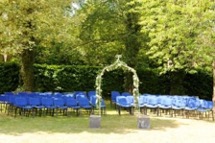
    The Village Green is a large, gently sloping quiet space surrounded by mature hedges and trees. Laid mainly to lawn with a recently installed children’s play areas in one corner.

    Please note:

    1. All children must be supervised by an adult at all times
    2. Noise and disturbance must be kept to a minimum
    3. Consumption of alcoholic drinks must be confined to the Hall and patio unless prior permission has been given by the Bookings Manager
    4. The hirer understands that members of the public will continue to walk across the Village Green and use the play equipment
    5. No unauthorised OUTDOOR MUSIC, lighting of FIREWORKS or flying of DRONES is permitted on the Beech Village Hall green.

    Food hygiene

    What? How?

    Clean hands through handwashing.

    Wash your hands frequently throughout the session and always after:

    1. Handling money
    2. Going to the toilet

    FSA handwashing video

    Clean and germ free surfaces through cleaning and disinfection FSA Cleaning video

    Handle enquiries about allergens in our products.

    1. Know what allergens are
    2. Refer customers to our ingredient list and disclaimer

     FSA Allergens

    Serving food Use a tool, not your hands eg cake slice or tongs
    Minimise cross contamination

    Use different tools to serve different food types.

    Fresh food and milk

    Only use fresh food and milk

    Do not store food and milk for more than 24 hours.

    Clean clothes and an apron Always wear clean clothes and a clean apron when serving food.


    Hall User Guide

    To help you prepare to use our Hall we have prepared our BVH hall user guide 

    This document is essential reading to help you plan for a successful event! It’s structured into the following sections:

    1. Planning for success
    2. Preparing for the worst
    3. In the event of fire
    4. When your arrive
    5. During your event
    6. Before you leave
    7. As you leave
    8. After your event

    How to use our equipment:

    • All
    • Appliances
    • Sound system and noise
    • Using our screens / displays

    Can I bring a USB stick to upload my file?

    No, we only accept files transferred electronically.

    • Our digital signs are run by a system called Yodeck which allows us to schedule different content to run on each screen.
    • Any content has to be uploaded to the Yodeck system and then scheduled to play.

    Can I use a projector?

    We have projectors to hire in:

    • Main hall
    • Wellhouse

    When you make you booking request please let us know if you would also like to hire the projector.

    Connection to the projectors is via HDMI. Please bring your own HDMI lead.

    How to use the main hall Audio Visual System?

    Please review our BVH Audio Visual system user guide

    How do I send my file to you?

    Please send a single file no larger than 100Mb.

    Most email clients limit the size of attachments to no more than 20 or 25Mb.

    You can email small files to:

    bookings@beechvillage.org.uk

    For larger file you will need to use a tool like WeTransfer or a file sharing tools like Microsoft OneDrive, Googledrive.

    Please allow plenty of time to send the file to us.

    How to control the Wellhouse heating?

    The heating in The Wellhouse is underfloor and the heat source is an external air source heat pump. The design is to keep The Wellhouse warm and cosy at all times!

    1. The Wellhouse was refurbished in 2025 and is extensively insulated and the main source of heat loss is when the extrance door is left open. 
    2. Please ensure that you keep the entrance door closed to maintain the temperature.

    The temperature is controlled by thermostats in each room. The temperature is normally set based on a schedule but can be manually overridden by pressing the in room thermostat.


    How to use the Audio Visual system in the main hall?

    The main hall has a range of audio visual equipment to support:

    • Music and dance played through a 2 channel disco sound system with disco lights and a choice of inputs:
      • BlueTooth
      • 3.5mm jack plug
      • HDMI
    • Presentation from a computer using an HDMI input
    • Public address using a microphone
    • Film and theatre presentations to our 4.5M wide screen using a 4K UHD 7,500 Lumens laser projector from:
      • UHD Blu-ray disc
      • Digital streaming services for example BBC iPlayer
    • Live events broadcast using digital streaming services

    How to use the Audi Visual (AV) system

    Please review our BVH Audio Visual system user guide

    Please note:

    1. Whilst the hall has a Premises License that covers these activities the hirer is responsible for ensuring they have the appropriate copyright licenses for the materials that they use.
    2. As we are located in a quiet and peaceful village with close neighbours we specify a maximum noise level in our terms and conditions. For more information please see this FAQ article:
      • clientsite.uk/faq/is-there-a-limit-on-the-volume-of-music/
    3. Usage of some our Blu-ray player or microphones requires access to our media cupboard which must be arranged in advance.

    How to use the Dishwasher in the kitchen?

    The dishwasher is a ‘commercial’ dishwasher. Unlike a home dishwasher, the system is reliant on pre heating the water to enable a rapid cycle time. This works well if you follow a few simple instructions

    1. Allow 20-40 minutes for the machine to pre-heat
    2. Always rinse food debris off the plates before washing
    3. Always remember to follow the draining down instructions at the end of the event

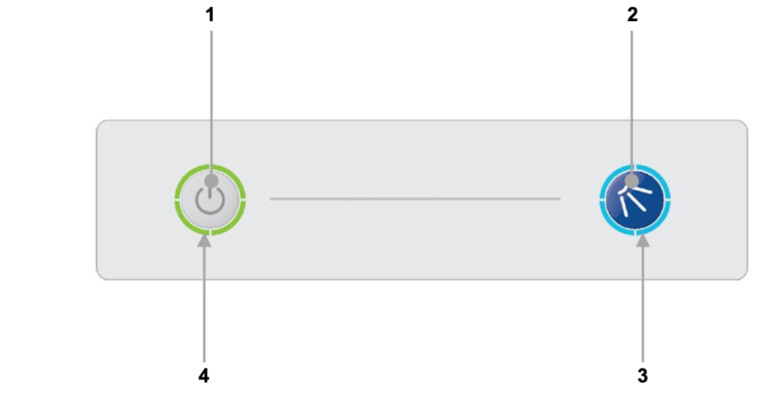
    To operate the dishwasher please use the buttons on the front of the machine:

    1. On/Off button
    2. Cycle button
    3. Cycle indicator
    4. Heating indicator

    Turning on the machine

    To turn on the machine ensure the door is closed and press the On/Off button (1) on the keypad of the machine, the display will illuminate, the machine will start to fill automatically as long as the door is closed.

    Once the wash tank is filled and both tanks are up to the required temperatures the heating indicator will illuminate green to indicate the machine is ready to run a cycle.

    1. This will take approximately 20-40 minutes.
    2. During the fill stage the heating indicator (4) will flash amber.

    Loading a basket

    Before loading a basket rinse off any food waste:

    • Always remove excess food/debris from any dishes/glasses to be washed. DO NOT use the machine as a waste disposal unit.

    Long cutlery, such as ladles and long knives etc., must be placed horizontally on the open basket this will avoid possible collision with wash/rinse arms.

    Starting a cycle

    To start a cycle, follow the instructions below.

    1. Open the door
    2. Load the full basket, ensuring that bottom and top arms rotate freely.
    3. Close the door
    4. Press the cycle button (2).
      1. The cycle will start once the machine has achieved its correct water levels and temperatures.
      2. During the cycle the blue cycle indicator (3) will be illuminated blue.
      3. The cycle will run for approximately 3 minutes.
    5. At the end of the cycle, once the cycle indicator (3) has gone out. Open the door and remove the basket
    6. Reload the machine and repeat as required.

    Please note:

    1. Do NOT open the door during a cycle
    2. The machine has a heat interlock to ensure that the rinse is in accordance with environmental health requirements. This will extend the wash cycle if the rinse boiler has not achieved the required temperature.
    3. If the cycle button is pressed before the machine has reached the required levels the cycle indicator (3) will illuminate blue to indicate that a cycle has been selected, the heating indicator (4) will flash amber and the machine will automatically start when the requirements have been met.

    Warning

    Items in the basket may be wet and will dry in a short time due to evaporation.

    Be aware: Items may be hot when removed from machine

    End of event, please drain the machine

    It is very important the machine is drained down at the end of each working day. To fully drain down the machine follow these instructions:

    1. Close the door to the machine
    2. Press the On/Off button (1) to turn off the machine.
    3. Press the cycle button (2)
    4. The cycle indicator (3) will flash blue.
    5. The machine will drain down the wash tank.
    6. The machine will do a self-rinse.
    7. When the cycle indicator (3) goes out the drain cycle is complete.

    How to use the Glasswasher (in the lounge/bar area)?

    1. Prepare dishwasher
      1. Open door, and put water plug in base of washing area, under tray.
      2. Replace tray, close door, and push in left hand power button.
    2. Washer should now fill, and heat the water – heating light will glow.
      1. When water is hot the orange light by right hand button will go out.
      2. It is now ready to use.
    3. To wash glasses:
      1. Fill glass tray, and when ready,
      2. Close door, then
      3. Push-and-hold right hand button in for a second or two.
      4. Washing cycle will now start – and end after around 3 minutes.
    4. Glasses will now be hot, and clean.
      1. Either leave to air or dry with towel and replace on shelf
    5. At end of evening:
      1. Remove water plug, rest it in the tray, and close door.
      2. Water will now pump out automatically.
      3. Check inside that it is empty.
      4. Press power switch and see power light go out.
      5. Close door.
    6. Any problems, ask a Committee member near you!

    How to use the screen in the entrance hall?

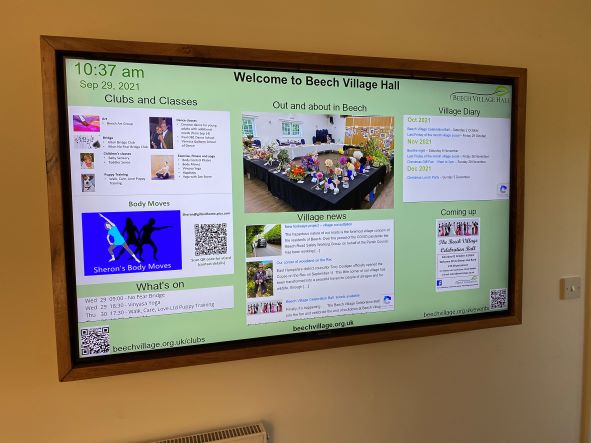
    If you have booked one of our packages you are welcome to use our digital signage system. The system includes:

    1. The large TV screen in the main corridor
    2. A smaller monitor in the lounge bar area
    3. Software to schedule the display

    For example, you might want to show a static welcome page, a table plan or a scrolling selection of family photographs.

    You will need to provide us with the material one week in advance.

    You will need to provide us with:

    1. A Powerpoint, pdf or .mov file containing the material you wish to show, at least 7 days in advance of the hire date.
    2. By default, we will schedule your material so that it appears on the screen during the hours you have booked the Hall. If you only want it to show for a specific period of time, let us know.
    3. If you provide a multi page PDF or PPT file, each page will appear for 5 seconds by default. This can be adjusted if you let us know how long you want each page to appear for.

    Please note:

    1. The TV screen is managed remotely by us and you will not be able to make any changes on-site.
    2. There is no provision for sound on this system.
    3. It is your responsibility to ensure that you have the appropriate approvals to use the material you send us. This may include copyright or a licence for images, and permission from people appearing in the pictures (or, where applicable, their parents or guardians).
    4. To deliver this service, we will upload the file you provide onto the platform of our service provider, Yodeck. We will delete all your materials from the platform shortly after your event

    How to use the sound system?

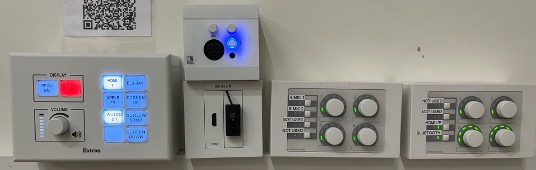
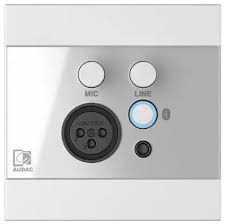
    The easiest way to use our sound system is via a Bluetooth connection.

    • You need to be in the far right corner of the main hall to connect


    • Press the button indicated to start Bluetooth:
    • You should connect your phone/laptop to the device named ‘WP225’
    • You will then be able to play music from your phone/laptop and also control the volume level.

    Please note:

    • Connect to our wifi first to improve streaming
    • You will need to keep your bluetooth device within range of our amplifier

    Alternatively, you can connect by cable:

    The Bluetooth connection box and the box beneath it also have sockets to connect via:

    3.5mm jack

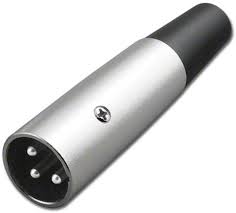
    3 pin XLR microphone plug:

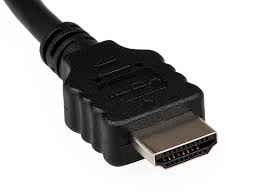
    Or HDMI:

    How to use the main hall Audio Visual System?

    Please review our BVH Audio Visual system user guide

    Is there a limit on the volume of music?

    As we are located in a quiet and peaceful village with close neighbours we specify a maximum noise level in our terms and conditions.

    1. We ask that windows and external doors are closed when loud music is being played inside the hall.
    2. We prohibit the playing of music outside of the hall without our express permission.

    We have a number of system to help monitor and control noise levels:

    1. A sound decibel meter to enable hirers to understand the noise level in real time
    2. A noise monitoring service provided by Minut that records the noise level in the hall. Please note that we do not record conversations. Please use this link for the Minut privacy policy
    3. A noise limiting system. The noise limiter has two parts”:
      1. A ‘traffic light’ display in the main hall. The light flash orange as the noise level nears the limit and red when the limit is exceeded
      2. A power cutout to the main hall when the noise limit is exceeded for more than 10 seconds.

    What format of digital file do you require to use the screen in the entrance hall?

    For the large screen in the entrance hall you shoud create a single digital file:

    • Landscape format with an aspect ratio of 1920 x 1080 (16:9)

    For the small screen in the lounge/bar area:

    • Portrait format with an aspect ratio of 1920 x 1080

    We can process most file formats eg PPT, MOV, JPG and PDF.

    We request you limit the size of the file to a maximum of 100Mb.

    We hope this covers everything you need to plan and prepare for a successful event. We also have our Frequently Asked Questions page and should you have any problems our Problem Reporting page

    For further information, please e-mail us or call 07501 187496 (office hours only).


    How do I send my file to you?

    Please send a single file no larger than 100Mb.

    Most email clients limit the size of attachments to no more than 20 or 25Mb.

    You can email small files to:

    bookings@beechvillage.org.uk

    For larger file you will need to use a tool like WeTransfer or a file sharing tools like Microsoft OneDrive, Googledrive.

    Please allow plenty of time to send the file to us.

    How do we gain access to the hall for our event?

    The Hall has electronic locks. We will issue you a 6 digit access code with your booking confirmation.

    Please note:

    • The Main entrance is wheelchair friendly.
    • The Wellhouse has 2 steps a the entrance and a further step into the Wellhouse room.
    • For regular hirers we can issue a keyfob.

    How many car park spaces do you have?

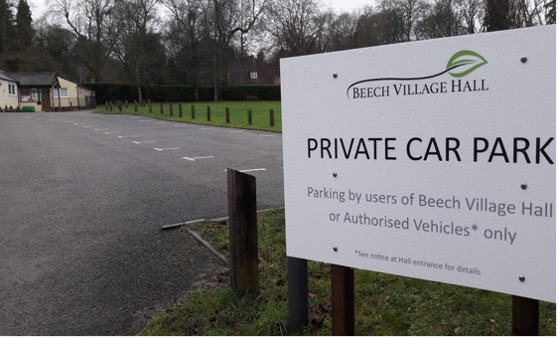
    The hall has a private car park with 37 spaces.

    The road outside the Village Hall grounds is not suitable for parking.

    We normally find that the space we have is sufficient especially as guests can double park within the grounds.
    In addition, subject to agreement and appropriate weather we can open up the village green for additional parking.

    How to control the Wellhouse heating?

    The heating in The Wellhouse is underfloor and the heat source is an external air source heat pump. The design is to keep The Wellhouse warm and cosy at all times!

    1. The Wellhouse was refurbished in 2025 and is extensively insulated and the main source of heat loss is when the extrance door is left open. 
    2. Please ensure that you keep the entrance door closed to maintain the temperature.

    The temperature is controlled by thermostats in each room. The temperature is normally set based on a schedule but can be manually overridden by pressing the in room thermostat.


    How to hire and set up the Marquee?

    We have a large Marquee measuring 6m x 12m and this can be placed on our village green outside the hall. The Marquee has side panels but does not have a floor.

    The Marquee is available for hire where the hirer commits to set up and take down the Marquee.

    • Setting up and taking down the Marquee requires a team of 10 people for 2-3 hours
    • The video below steps through the process for a similar marquee.
    https://www.youtube.com/watch?v=LxvmTfeJuQ0

    Marquee set up Safety Basics

    A quick guide for volunteers helping put up or take down our 6m x 12m marquee and 3m x 6m stage.

    1. Lifting and Carrying

    • Never lift alone. Poles, stage decks, and folded marquee sections are heavy and awkward — always use a two- or four-person lift for anything bulky.
    • Plan before you lift. Agree who’s carrying, where it’s going, and clear the path first.
    • Use good technique: feet shoulder-width apart, bend your knees (not your back), keep the load close to your body, and avoid twisting — turn your feet instead.
    • Lift in stages for heavy or high items (e.g. stage sections onto trestles) — rest the load partway if needed rather than forcing it in one go.
    • Know your limits. If it feels too heavy or unbalanced, stop and get more hands or a trolley/sack truck.
    • Free official training: HSE – Good Manual Handling Technique

    2. Gloves

    • Wear gloves whenever handling poles, stakes, guy ropes, or stage frames — they protect against splinters, pinch points, and rope burn.
    • Use grip-palm work gloves for general rigging; consider cut-resistant gloves if handling metal edges or cutting cord.
    • Remove gloves (or use snug-fitting ones) around power tools such as drills, to avoid snagging.

    3. Trip Hazards

    • Stakes and pegs: flag with hi-vis tape or cones until guy ropes are tensioned and the layout is finished.
    • Guy ropes and cables: keep walkways clear; route power cables away from foot traffic or cover them.
    • Ground clutter: clear packaging, tools, and offcuts as you go — don’t wait until the end.
    • Uneven ground: watch for holes, tent pegs, and cabling especially in low light — consider temporary lighting for early morning or evening builds.

    4. General Reminders

    • Wear sturdy, closed-toe boots — no sandals or trainers.
    • Take regular breaks, especially in hot weather or during long build days.
    • Report any near-misses or injuries.

    How to keep us all safe?

    In signing up to support our community we ask our volunteers to understand and comply with our core values and beliefs as defined in these policies:

      1. Code of Conduct
      2. Health and Safety
      3. Safeguarding and Child protection
      4. Data Protection Policy


    How to report a problem or incident?

    Here the numbers to call for immediate help. After the incident please ensure the details are reported using this Problem reporting form or email bookings@beechvillage.org.uk

    In case of Accident, Injury or Safeguarding concern:

    What

    What/Where

    Call

    Emergency


    999

    Not sure what to do?

    NHS 111 can help if you have an urgent medical problem

    111

    Defibrillator

    Outside the front entrance on the right

    (dial 999 for assistance)

    First Aid kit

    In the Village Hall kitchen


    Hospital A&E

    Basingstoke NHS Foundation Trust, Aldermaston Rd, Basingstoke, RG24 9NA

    01256 473202

    Doctors Surgery

    Chawton Park Surgery, Chawton Park Road, Alton, GU34 1RJ

    01420 542542

    Out of hours:

    0208 390 9991

    Safeguarding

    Emergency

    999

    Child or Adult in danger

    101

    Report a concern about a child

    0300 555 1384

    Report a concern about an adult

    0300 555 1386

    How to submit an expense claim?

    To be reimbursed for expenses incurred in supporting our Charity please use this online form:

    Expense claim

    The form is primarily designed for submitting claims for baking and milk expenses for our Coffee shop but you can use it for other expenses:

    1. You will need to provide your bank details (if we dont already have them)
    2. Please remember to scan and attach a receipt
    3. Expense are normally paid monthly so please let us know if yours are urgent

    How to test and reset the fire alarm points?

    Test:

    1. Check that the light on the front flashes green every 40 seconds.
      1. This indicates it has power.
    2. Press the black spot and the white element will drop down exposing the yellow edge to show it is activated.
      1. The light will turn red and stay on continuously for 3 seconds and then continue to flash red (every 20 seconds) for 5 minutes indicating transmission of the alarm signal.
      2. After 5 minutes the alarm signal and the smoke alarms will stop.
        1. This prevents the batteries in the Manual Call Point and the alarm from being depleted).


    Check:

    1. Alarm audible in each room.
    2. Kitchen smoke shutter lowered.


    Reset:

    1. Use the plastic key by pushing the forked end (arrow side up) into the slots (see Figure 1)
    2. Pull the bottom housing down (see Figure 2)
    3. Remove the plastic key.
    4. Now push the bottom housing firmly against the back and slide upwards.
      1. This resets the switch.
      2. The yellow strip on the white element should now be hidden.
      3. If the Manual Call Point is not reset the light will flash red every 40 seconds to remind the user to reset it.
      4. If the light flashes amber every 9 seconds this indicates that the batteries are depleted

    Reset kitchen smoke shutter using key from keysafe.

    How to use our point of sale (PoS)

    We use the Square system to take payments for food, drinks and tickets using:

    1. Card (preferred)
    2. Cash
    3. Payment links

    To use one of the systems you will need:

    1. Access codes:
      1. The 6 digit PIN code to access the iPad
      2. The 4 digit PIN code to access the Square application on the iPad
      3. Please email sales@beechvillage.org.uk for this
    2. To ensure the iPad and card reader are charged
    3. Or alternativlely, you can set up your own device or web browser to take payments
      1. Please email sales@beechvillage.org.uk for help on setting this up

    How to use the Square app:

    1. Turn on the iPad
    2. Enter the 6 digit PIN code for the iPad,
    3. Check you are in the Square app, if not select the Square app from the menu
      1. Your will need to enter the 4 digit PIN code for the Square app
    4. Check you are on the correct menu for the event:
      • The menu name is in the top left of the screen
      • There is a book icon you can press to select different menus on the top right of the menu.
    5. Navigate the screen to select the items you wish to add to the ‘shopping cart’
    6. You can select an item multiple times or update the quantity from the shopping cart.
    7. Select pay
      1. The application defaults to card payment and the card reader will show a green light
        • If you override to cash and you are handling food a you MUST wash your hands after handling money
      2. The card reader does not display the amount, you can show the customer the iPAd display if asked.
      3. The customer can tap or insert their card or phone
        • Sometimes customers are required to insert their card and enter their PIN
        • You will need to present the iPad screen to enable their PIN entry
      4. Once payment is confirmed you will be given the option to email a receipt to the customer, to do this you/they will need to enter an email address

    Square problems

    Check reader is powered on and has charge Power button next to charging port
    Plug into charger
    Check reader is connected to Square application From Square app on iPad:
    Click ‘More’ at bttom right of screen
    Sellect ‘Settings’
    Select ‘Hardware from left navigation
    Check connected devices

    How to use the Audio Visual system in the main hall?

    The main hall has a range of audio visual equipment to support:

    • Music and dance played through a 2 channel disco sound system with disco lights and a choice of inputs:
      • BlueTooth
      • 3.5mm jack plug
      • HDMI
    • Presentation from a computer using an HDMI input
    • Public address using a microphone
    • Film and theatre presentations to our 4.5M wide screen using a 4K UHD 7,500 Lumens laser projector from:
      • UHD Blu-ray disc
      • Digital streaming services for example BBC iPlayer
    • Live events broadcast using digital streaming services

    How to use the Audi Visual (AV) system

    Please review our BVH Audio Visual system user guide

    Please note:

    1. Whilst the hall has a Premises License that covers these activities the hirer is responsible for ensuring they have the appropriate copyright licenses for the materials that they use.
    2. As we are located in a quiet and peaceful village with close neighbours we specify a maximum noise level in our terms and conditions. For more information please see this FAQ article:
      • clientsite.uk/faq/is-there-a-limit-on-the-volume-of-music/
    3. Usage of some our Blu-ray player or microphones requires access to our media cupboard which must be arranged in advance.

    How to use the Dishwasher in the kitchen?

    The dishwasher is a ‘commercial’ dishwasher. Unlike a home dishwasher, the system is reliant on pre heating the water to enable a rapid cycle time. This works well if you follow a few simple instructions

    1. Allow 20-40 minutes for the machine to pre-heat
    2. Always rinse food debris off the plates before washing
    3. Always remember to follow the draining down instructions at the end of the event

    To operate the dishwasher please use the buttons on the front of the machine:

    1. On/Off button
    2. Cycle button
    3. Cycle indicator
    4. Heating indicator

    Turning on the machine

    To turn on the machine ensure the door is closed and press the On/Off button (1) on the keypad of the machine, the display will illuminate, the machine will start to fill automatically as long as the door is closed.

    Once the wash tank is filled and both tanks are up to the required temperatures the heating indicator will illuminate green to indicate the machine is ready to run a cycle.

    1. This will take approximately 20-40 minutes.
    2. During the fill stage the heating indicator (4) will flash amber.

    Loading a basket

    Before loading a basket rinse off any food waste:

    • Always remove excess food/debris from any dishes/glasses to be washed. DO NOT use the machine as a waste disposal unit.

    Long cutlery, such as ladles and long knives etc., must be placed horizontally on the open basket this will avoid possible collision with wash/rinse arms.

    Starting a cycle

    To start a cycle, follow the instructions below.

    1. Open the door
    2. Load the full basket, ensuring that bottom and top arms rotate freely.
    3. Close the door
    4. Press the cycle button (2).
      1. The cycle will start once the machine has achieved its correct water levels and temperatures.
      2. During the cycle the blue cycle indicator (3) will be illuminated blue.
      3. The cycle will run for approximately 3 minutes.
    5. At the end of the cycle, once the cycle indicator (3) has gone out. Open the door and remove the basket
    6. Reload the machine and repeat as required.

    Please note:

    1. Do NOT open the door during a cycle
    2. The machine has a heat interlock to ensure that the rinse is in accordance with environmental health requirements. This will extend the wash cycle if the rinse boiler has not achieved the required temperature.
    3. If the cycle button is pressed before the machine has reached the required levels the cycle indicator (3) will illuminate blue to indicate that a cycle has been selected, the heating indicator (4) will flash amber and the machine will automatically start when the requirements have been met.

    Warning

    Items in the basket may be wet and will dry in a short time due to evaporation.

    Be aware: Items may be hot when removed from machine

    End of event, please drain the machine

    It is very important the machine is drained down at the end of each working day. To fully drain down the machine follow these instructions:

    1. Close the door to the machine
    2. Press the On/Off button (1) to turn off the machine.
    3. Press the cycle button (2)
    4. The cycle indicator (3) will flash blue.
    5. The machine will drain down the wash tank.
    6. The machine will do a self-rinse.
    7. When the cycle indicator (3) goes out the drain cycle is complete.

    How to use the Glasswasher (in the lounge/bar area)?

    1. Prepare dishwasher
      1. Open door, and put water plug in base of washing area, under tray.
      2. Replace tray, close door, and push in left hand power button.
    2. Washer should now fill, and heat the water – heating light will glow.
      1. When water is hot the orange light by right hand button will go out.
      2. It is now ready to use.
    3. To wash glasses:
      1. Fill glass tray, and when ready,
      2. Close door, then
      3. Push-and-hold right hand button in for a second or two.
      4. Washing cycle will now start – and end after around 3 minutes.
    4. Glasses will now be hot, and clean.
      1. Either leave to air or dry with towel and replace on shelf
    5. At end of evening:
      1. Remove water plug, rest it in the tray, and close door.
      2. Water will now pump out automatically.
      3. Check inside that it is empty.
      4. Press power switch and see power light go out.
      5. Close door.
    6. Any problems, ask a Committee member near you!

    How to use the screen in the entrance hall?

    If you have booked one of our packages you are welcome to use our digital signage system. The system includes:

    1. The large TV screen in the main corridor
    2. A smaller monitor in the lounge bar area
    3. Software to schedule the display

    For example, you might want to show a static welcome page, a table plan or a scrolling selection of family photographs.

    You will need to provide us with the material one week in advance.

    You will need to provide us with:

    1. A Powerpoint, pdf or .mov file containing the material you wish to show, at least 7 days in advance of the hire date.
    2. By default, we will schedule your material so that it appears on the screen during the hours you have booked the Hall. If you only want it to show for a specific period of time, let us know.
    3. If you provide a multi page PDF or PPT file, each page will appear for 5 seconds by default. This can be adjusted if you let us know how long you want each page to appear for.

    Please note:

    1. The TV screen is managed remotely by us and you will not be able to make any changes on-site.
    2. There is no provision for sound on this system.
    3. It is your responsibility to ensure that you have the appropriate approvals to use the material you send us. This may include copyright or a licence for images, and permission from people appearing in the pictures (or, where applicable, their parents or guardians).
    4. To deliver this service, we will upload the file you provide onto the platform of our service provider, Yodeck. We will delete all your materials from the platform shortly after your event

    How to use the sound system?

    The easiest way to use our sound system is via a Bluetooth connection.

    • You need to be in the far right corner of the main hall to connect


    • Press the button indicated to start Bluetooth:
    • You should connect your phone/laptop to the device named ‘WP225’
    • You will then be able to play music from your phone/laptop and also control the volume level.

    Please note:

    • Connect to our wifi first to improve streaming
    • You will need to keep your bluetooth device within range of our amplifier

    Alternatively, you can connect by cable:

    The Bluetooth connection box and the box beneath it also have sockets to connect via:

    3.5mm jack

    3 pin XLR microphone plug:

    Or HDMI:

    How to use the main hall Audio Visual System?

    Please review our BVH Audio Visual system user guide

    In the event of Fire

    Who is responsible

    The Hirer or the Event organiser is deemed the “Responsible Person” and is designated the person in charge of the Hall/Room during the hire period or event.

    Prior to your event you must make a plan of who and how you will manage the evacuation of your guests in the event of a fire. We detail how to do this in our User Guide and document below the summary.

    Before the event:

    You need a plan before the event so you can evacuate the building quickly and safely:

    Appoint and brief your ‘fire marshalls’:

    • Appoint at least 1 Fire Marshall per 50 guests to OWN the plan.
    • Ensure they understand their role and your plan based on the information below

    When you arrive:

    Review the emergency procedures on the hall noticeboard:

    • The action to be taken in event of fire
    • The location and use of fire equipment
    • Escape routes and the need to keep them clear.
    • That all fire exits are unlocked and you know how to open them.
    • The importance of closing fire doors in the event of a fire and that any fire doors are not wedged open.
    • That exit signs are clear.
    • Any potential fire hazards on the premises are supervised.

    In the event of a fire:

    What to do when a fire is detected? Take charge!
    Trigger the Fire Alarm.
    Get everyone out of the building.
    Check everyone is out.
    Evaluate using the Fire Extinguishers.
    Call the Fire Brigade.
    Do not let anyone back into the hall until it is safe.
    After the incident report it to us.
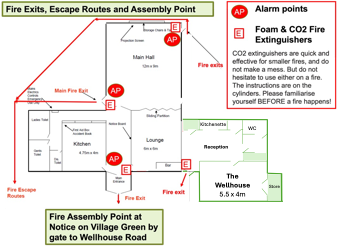
    How to trigger the Fire Alarm? Use the Fire Alarm points in the Entrance or Main Hall as marked on the drawing below.
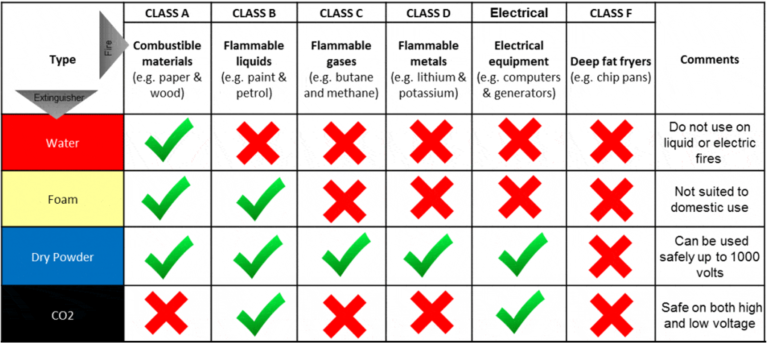
    Should we use the fire extinguishers? Attempts to extinguish the fire using the extinguishers should only be carried out if it is considered safe. If in any doubt, get out of the building.
    Where are the Fire Extinguishers? The Fire Extinguishers are marked on the drawing below.
    Which type of fire extinguisher should we use?
    How to use the Fire Extinguishers? 1. Identify a clear escape route.
    2. If you cannot put out the fire, you’ll need a safe exit.
    3. Stand back between 6 and 8 feet.
    4. Face the fire and keep your back to exit.
    Discharge extinguisher:
    P: Pull the pin on the fire extinguisher.
    A: Aim the extinguisher nozzle toward the base of the fire.
    S: Squeeze the handle or lever to discharge the extinguisher.
    S: Sweep the nozzle back and forth, aiming at the base of the fiew.
    How to evacuate from the building? The Fire Exits are marked on the drawing below
    Where to assemble? The Fire Assembly Point is on the village green by the children’s play area.
    How to check everyone is out of the building? Check each of the 3 toilets.
    Check the kitchen.
    Check the Wellhouse and toilet (if being used).
    How to call the Fire Brigade? Call 999
    And give the address:
    Beech Village Hall. Wellhouse Road, Beech, Alton, Hampshire GU34 4AD.

    After the fire Please ensure you report any incident to using the ‘Contact‘ button at the top of the page

    Road closure?

    Access to the village hall is from the Alton to Basingstoke A339 junction with the Medstead Road.

    In the event of roadworks on the Medstead Road the road is normally closed to through traffic which is then diverted around ther village. Access to the village including the village hall is normally still possible.

    For information on current and planned road closures please use the link to Onenetwork for live road closure information

    What format of digital file do you require to use the screen in the entrance hall?

    For the large screen in the entrance hall you shoud create a single digital file:

    • Landscape format with an aspect ratio of 1920 x 1080 (16:9)

    For the small screen in the lounge/bar area:

    • Portrait format with an aspect ratio of 1920 x 1080

    We can process most file formats eg PPT, MOV, JPG and PDF.

    We request you limit the size of the file to a maximum of 100Mb.

    Where are you?

    is just half a mile from the main A339 Alton to Basingstoke road from where it is clearly sign-posted, so it is very easy to find. The village is two miles from Alton in Hampshire. Our postcode is GU34 4AQ.

    Where can we smoke?

    Smoking is not permitted within the building. We do have an outdoor smoking area to the right of the main entrance.

    • « Go to Previous Page
    • Page 1
    • Page 2
    • Page 3
    • Page 4
    • Go to Next Page »

    • About
    • FAQ
    • Legal